From your first sign-in to answers about your app in production.
These pages show Cloud's URLs. Sign in on Hosted and they show your server's.
Getting started
From a first look at OpenTelemetry to your own trace in the Observatory. Each step builds on the one before, so go in order.
[VIDEO: Getting started]
Signing in, downloading the Reference Demo, minting the Pub and OTLP tokens, running weather_flutter, and opening its trace in the Observatory.
About OpenTelemetry
Start with OpenTelemetry
Dartastic is built on OpenTelemetry (OTel), the open standard for recording what software does. Dartastic follows the OpenTelemetry specification closely: the names, the data and the way it is sent are the standard ones. What you learn about OpenTelemetry applies to Dartastic, and what you build with Dartastic stays standard OpenTelemetry.
The specification is approachable. Before you go further, spend an hour with the OpenTelemetry documentation for a basic understanding:
What happened, step by step, and how long each step took. A trace is a tree of spans: a tap, the network call it made, the server work behind that call, the database query under it. One trace can cross from your app into your server.
Lines of text with a time and a severity. In OpenTelemetry a log carries the trace it was written in, so from a log you can open everything else that happened in that moment.
All three carry a resource: which app sent them, which version, on which device. Dartastic adds Real User Monitoring on top (sessions, screens, taps and replay), recorded as standard signals too. The Overview explains the other words these pages use.
1. Sign in
Sign in to dartastic.io. The first time, Dartastic creates your organization: the account your tokens, teammates and plan belong to. If a teammate invited you, sign in with the invited email address and you join their organization instead.
Press Reference Demo at the top of the Control Room and unpack it. You will run it in step 5: it is the fastest way to see Dartastic work, and its code shows how to use every feature. More about the Reference Demo.
3. Connect dart pub to your Dartastic Pub
The Dartastic packages come from your Dartastic Pub, not pub.dev, and dart pub needs a token to read from it. Most developers have never done this before; it takes a minute, once per computer.
Dartastic Pub is also a pass-through to pub.dev. Define your packages in pubspec.yaml as you always have, and the ones from pub.dev resolve from pub.dev automatically, alongside the Dartastic packages and your private ones.
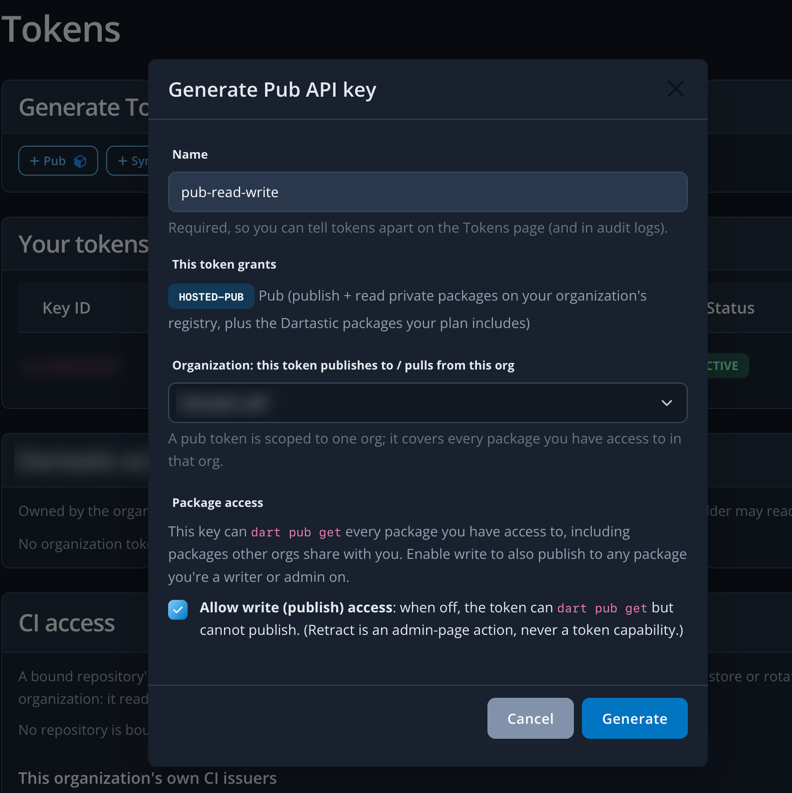
Name: any name that tells your tokens apart; we recommend pub-org-read-write.
Organization: the organization whose packages this token reads and publishes.
Allow write (publish) access: check it to publish to your Dartastic Pub with this token. Without it the token can only read, which is all the Reference Demo needs except symbolizer_demo_flutter and crash_demo_flutter, which publish to your Pub.
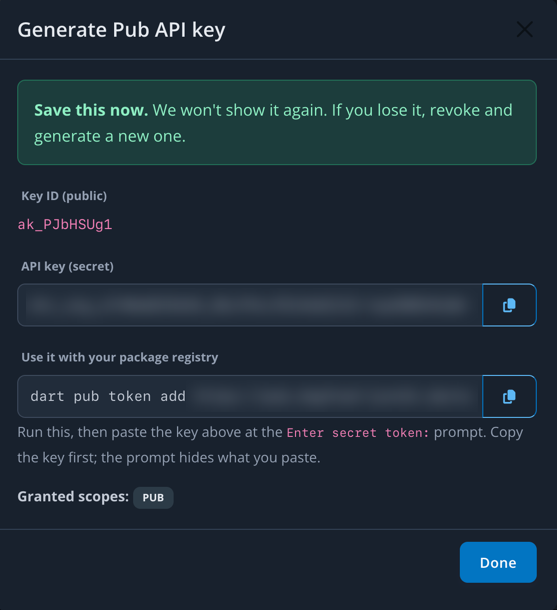
Click Generate. Your token is shown once: Copy the token with its copy button now: once you close this dialog it cannot be shown again. Granted scopes: Pub means this token is only for Pub: it cannot send telemetry or call any other service.
In a command shell, give the token to dart pub:
shell
dart pub token add https://pub.dartastic.io
When it prompts Enter secret token:, paste the token and press Enter. The prompt shows nothing as you paste; that is expected. It answers:
terminal
Enter secret token:
Requests to "https://pub.dartastic.io" will now be authenticated using the secret token.
In the Reference Demo's folder, fetch its packages:
shell
flutter pub get
If it succeeds, your Pub and your token work.
dart pub keeps the token for that host and sends it only there. Pub covers listing, replacing and removing tokens, and publishing.
Which packages a Pub token reaches
A Pub token reaches the packages its owner may use, and no more.
Organization admins have every package in the organization, so their tokens do too.
Other teammates can only mint tokens for the packages they have been given. An admin grants packages to a teammate.
See Invite teammates for roles, and Pub for granting packages to org members.
4. Let your app send telemetry
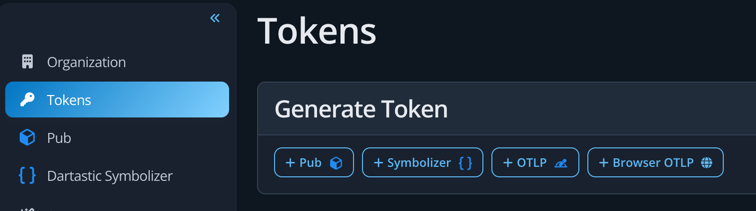
On Tokens, mint an OTLP token, then export it in your shell in OpenTelemetry's standard form. Keep authorization lowercase:
With Docker running, start the weather demo from the Reference Demo's folder and pick a device:
shell
tool/launch.sh weather_flutter
Tap to fetch the weather. That tap starts a trace that runs through the app, the weather API, its cache and the outside weather service.
6. See it in the Observatory
Your tap reaches the Observatory within seconds. The app links to what it sent: follow its link to open the trace and see every step and how long it took.